SmartShots Mobile
Screenshot management from your home screen
Install SmartShots to your home screen on iOS or Android. Upload screenshots and downloaded images, review your library, add notes and tags, and manage collections from your phone without a separate native app.
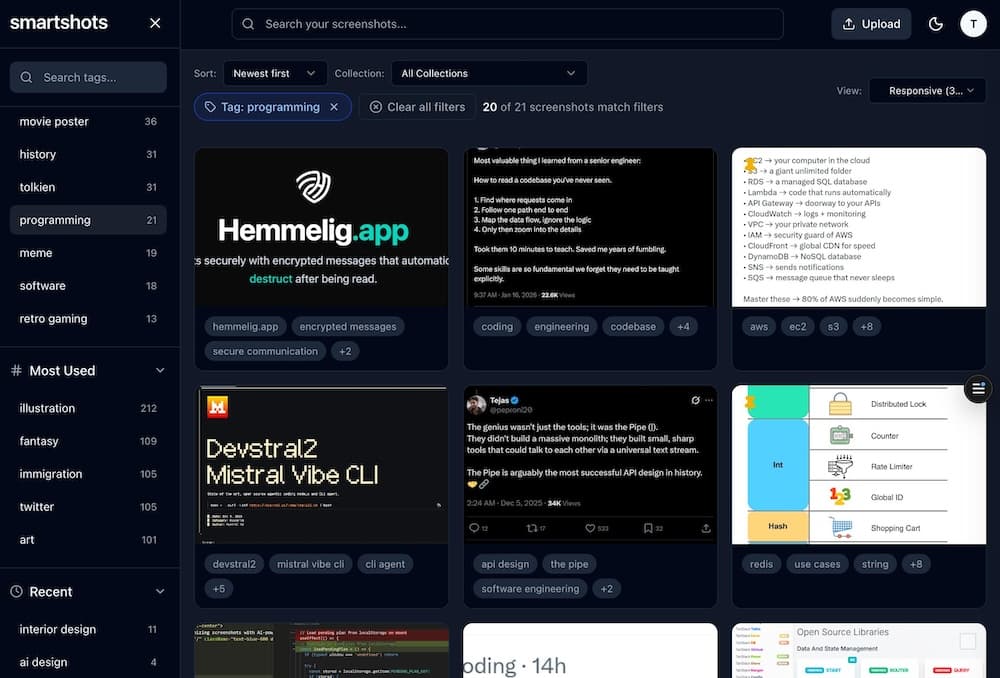
SmartShots Mobile is the same SmartShots library you use on desktop and browser, tuned for quick mobile review. It is built for the way screenshots actually happen on phones: a text thread you want to save, a receipt, a product idea, a family memory, a design reference, or a project asset you need later.
A mobile app experience without another app store dependency
SmartShots Mobile uses the installable web app experience already built into modern phones. You get home screen access, a focused mobile dashboard, and the same account-backed screenshot library across devices.
Install it like an app
Add SmartShots to your home screen on iOS or Android and open it like any other mobile app, without waiting for a separate app store install.
Upload from your phone
Save screenshots, downloaded images, references, text threads, receipts, and project assets into the same library you use on desktop.
Review and organize anywhere
Search, tag, edit notes, manage collections, and clean up your screenshot library from a mobile layout built for quick sessions.
Built for fast phone workflows
Mobile screenshots are often personal and immediate. They come from messages, shopping, travel, social posts, school updates, work chat, bank records, design inspiration, and random things you know you will need later.
SmartShots helps you move those images out of the camera-roll scroll and into a searchable library with OCR, AI descriptions, tags, collections, and notes.
Good mobile uses
- Save meaningful text threads: keep family messages, plans, quotes, and conversations somewhere easier to find.
- Collect project assets: upload visual references, product ideas, receipts, bugs, inspiration, and client context from your phone.
- Clean up later from anywhere: add tags, sticky notes, collections, and reminders when you have a minute.
- Keep one library: screenshots uploaded from mobile, desktop, browser, and direct upload all live in the same SmartShots account.
How to use SmartShots Mobile
Setup takes a minute, and the workflow stays familiar after that.
Open SmartShots
Visit SmartShots in Safari on iPhone or Chrome on Android and sign in to your account.
Add it to your home screen
Use the browser menu to add SmartShots to your home screen. It opens full screen and keeps your dashboard close by.
Upload and organize
Use Upload to add screenshots or downloaded images, then review tags, notes, collections, and search results from the same mobile view.
Your screenshot library, in your pocket
Use SmartShots Mobile for phone uploads and quick review, then continue organizing from desktop whenever you want a larger workspace.
View Pricing